
Get a YunZheng Voice number and make your first call
A free personal phone takes a few minutes: one account, one extension and a number of your own. It then rings in the browser, the desktop app and the phone app at once.
Step 1: Create an account or sign in
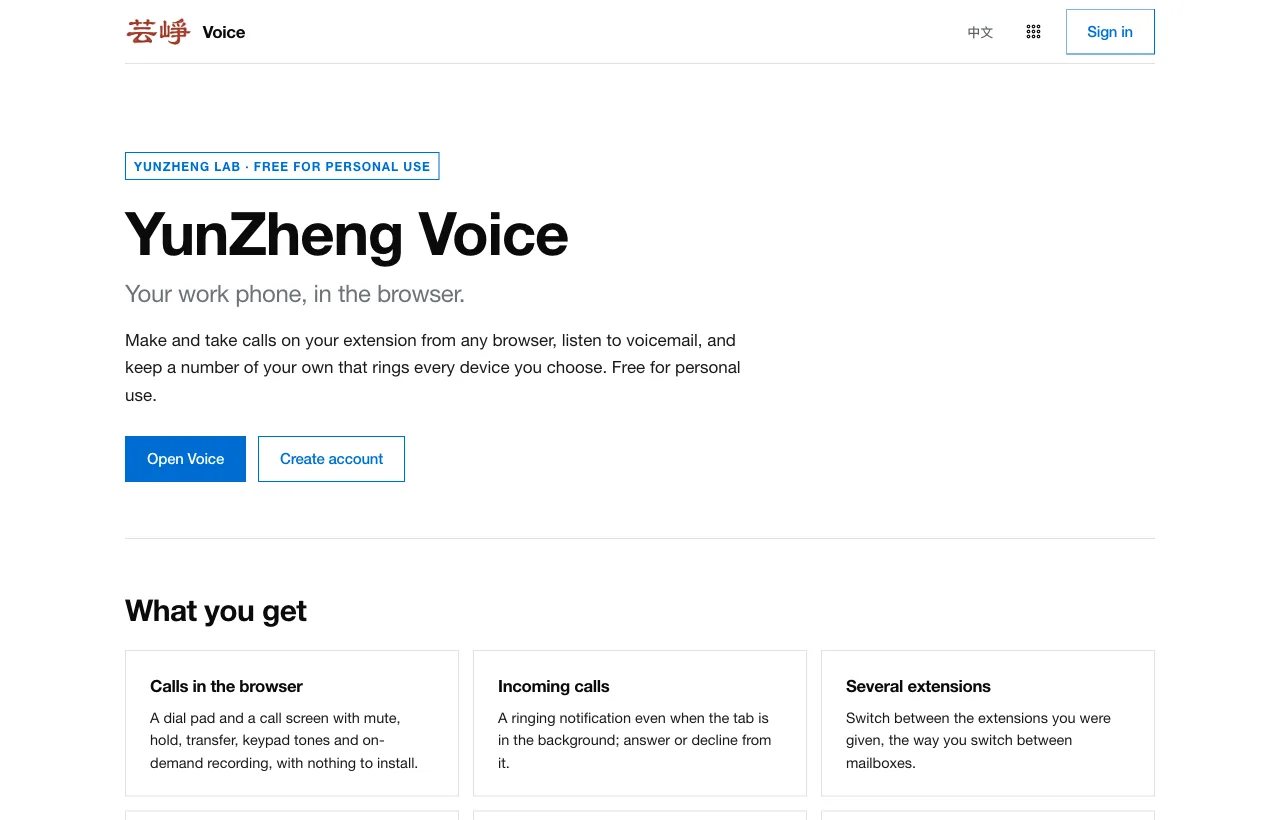
Open voice.yunzheng.space and choose Sign in, or Create account if you are new. Sign in with Google, a passkey, or an email address and password. The same account opens every YunZheng app.
Step 2: Open Voice on the web, or install the app
Voice works in any current browser with microphone access. To take calls without keeping a browser tab open, install YunZheng Voice for Mac, Windows, Android or iPhone from Downloads. The steps below work the same in the browser and in the apps.
Step 3: Set up your phone
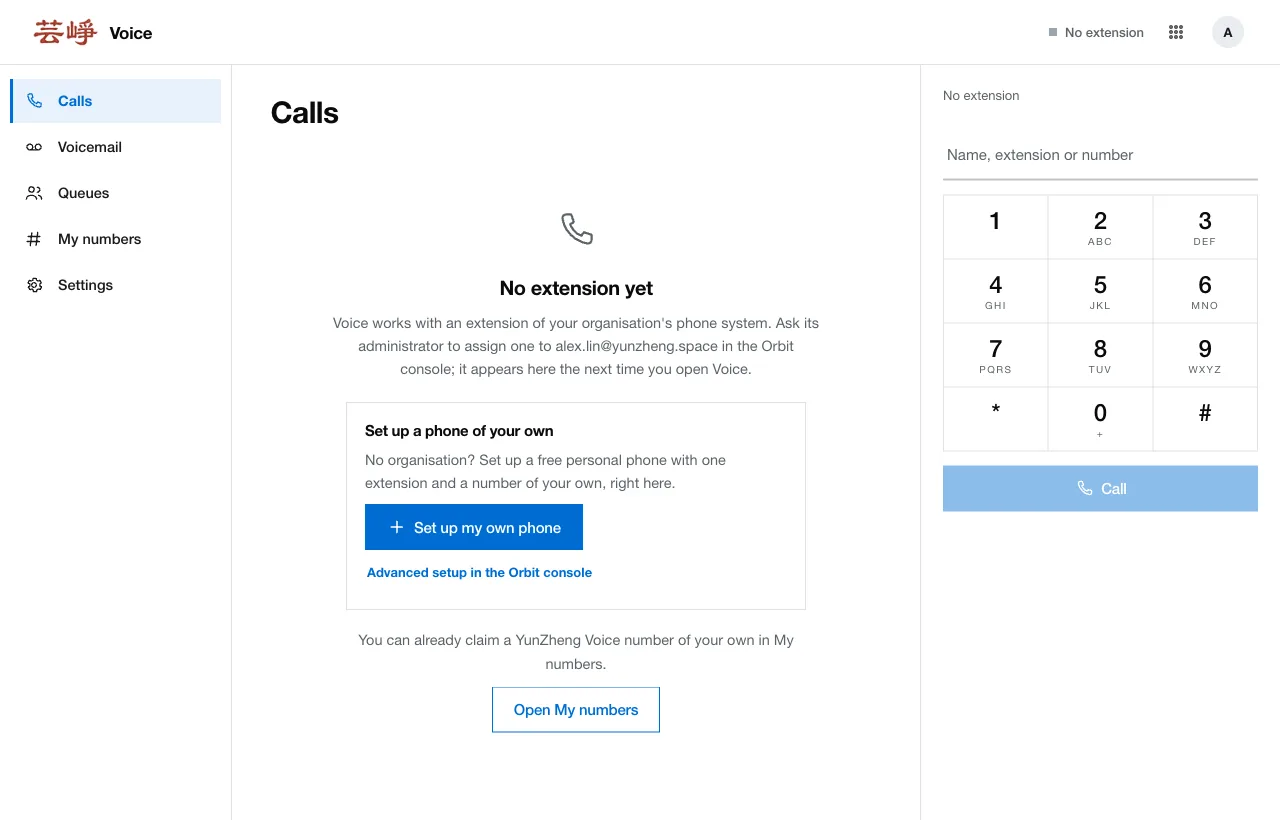
The first time you sign in, Voice shows No extension yet. Choose Set up my own phone. A few seconds later you have a personal phone system with extension 100 and a YunZheng Voice number of your own.
If your organisation already uses YunZheng Voice, ask its administrator for an extension instead; it appears here the next time you open Voice.
Step 4: Find your number
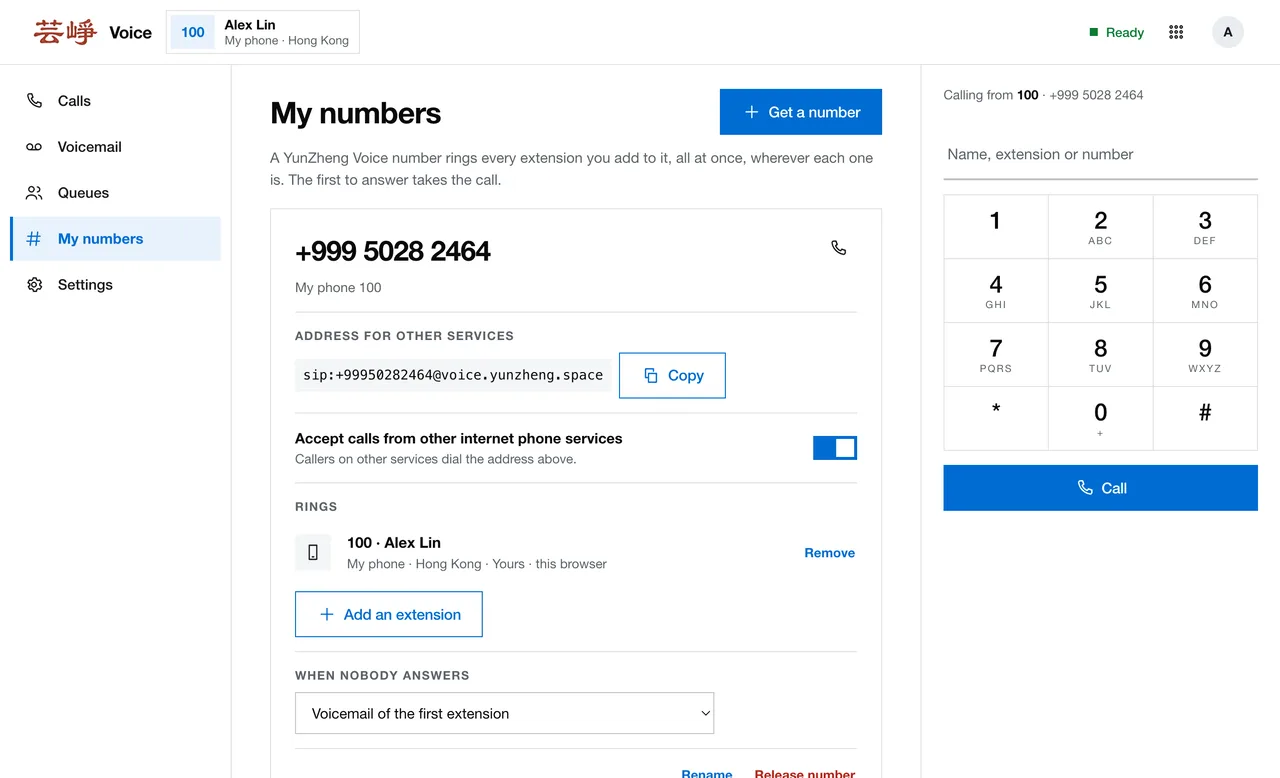
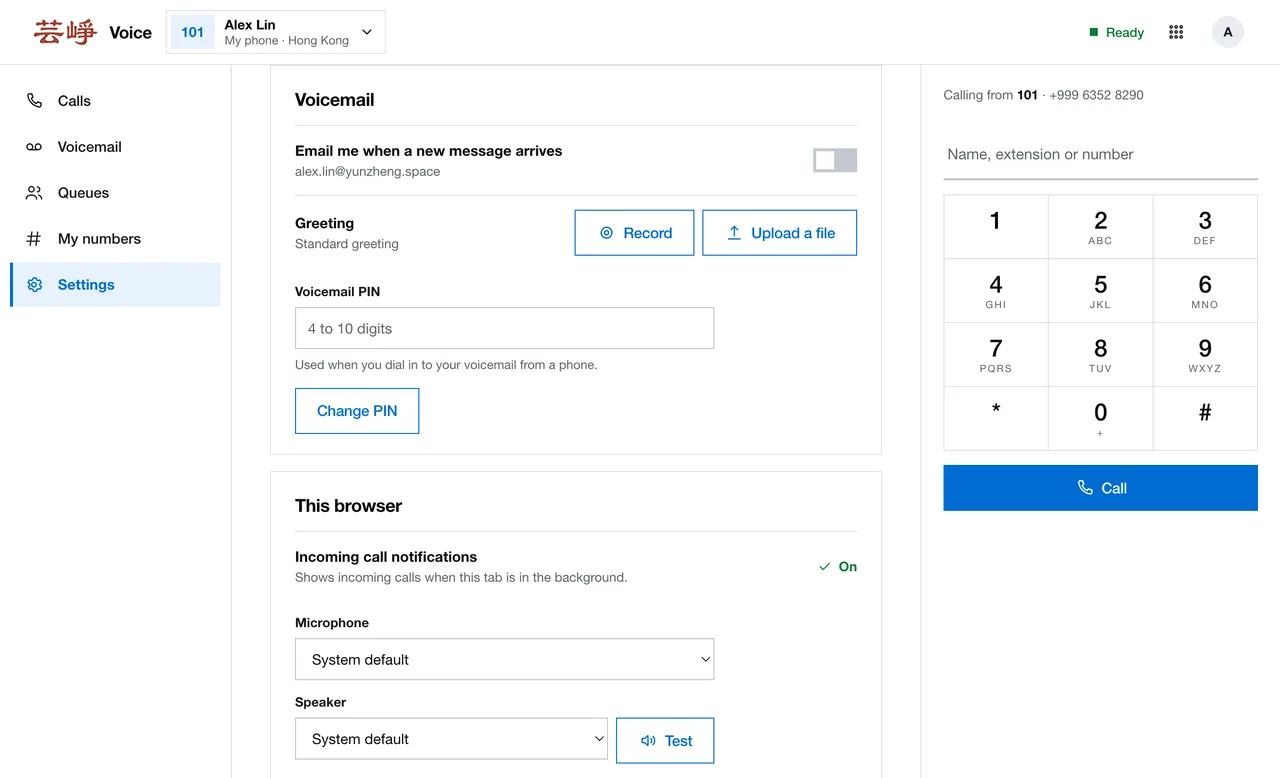
Your number is shown next to Calling from above the keypad, and in My numbers. My numbers also lists the extensions the number rings, what happens when nobody answers, and the number's address for other internet phone services.
Step 5: Sign in to the desktop app
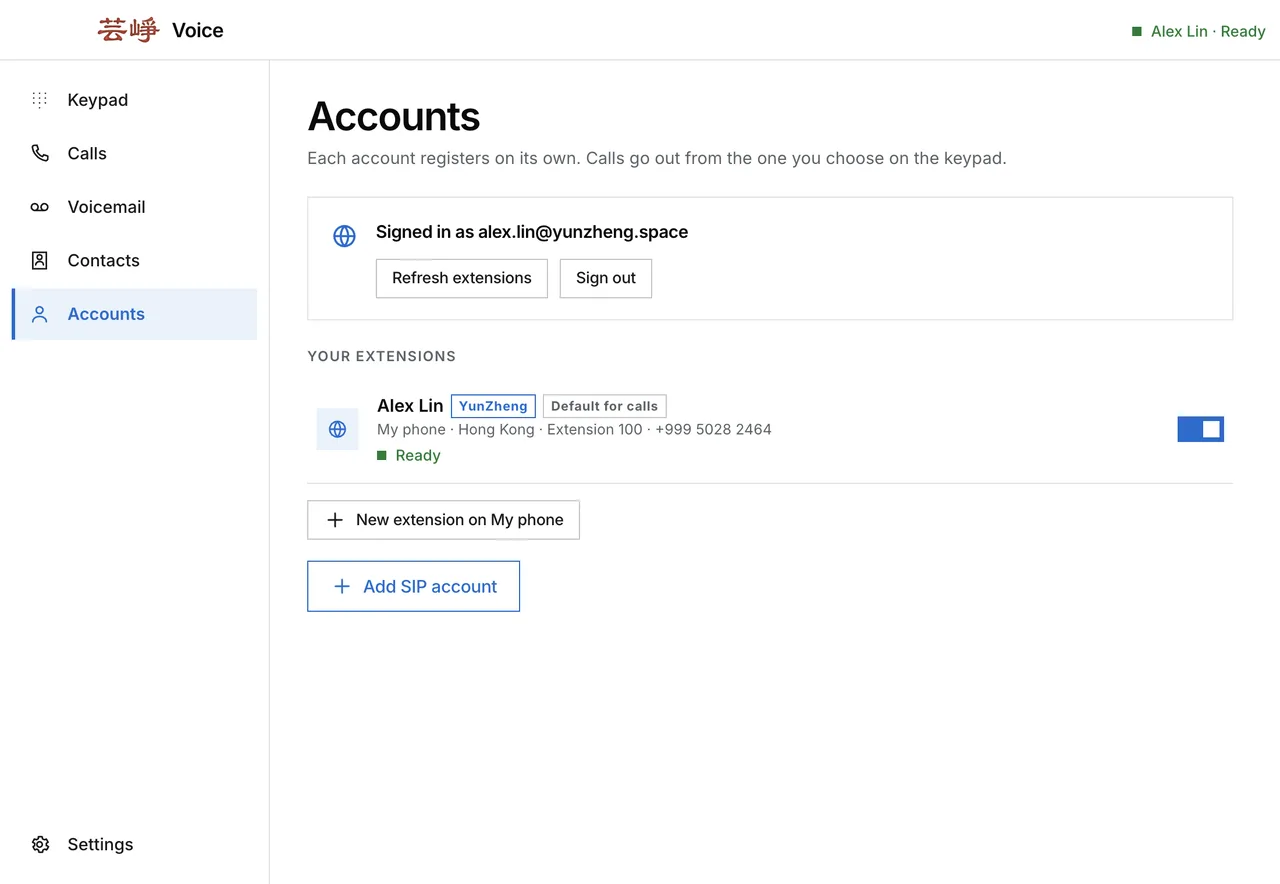
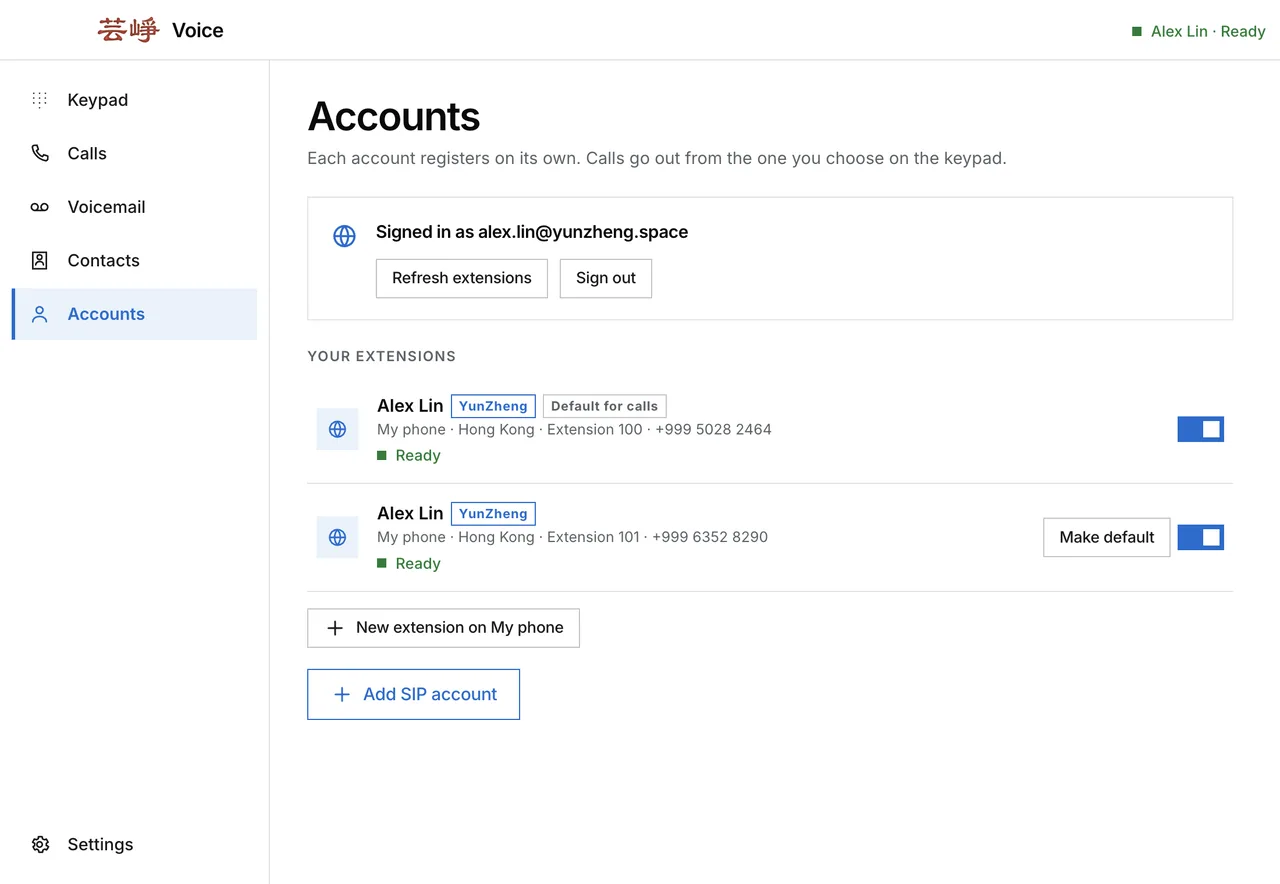
Open YunZheng Voice and go to Accounts, then choose Sign in with YunZheng. The sign-in page opens in your browser; when you are done, the app comes back to the front and adds your extensions by itself. Ready next to an extension means it can make and take calls.
Step 6: Make a call
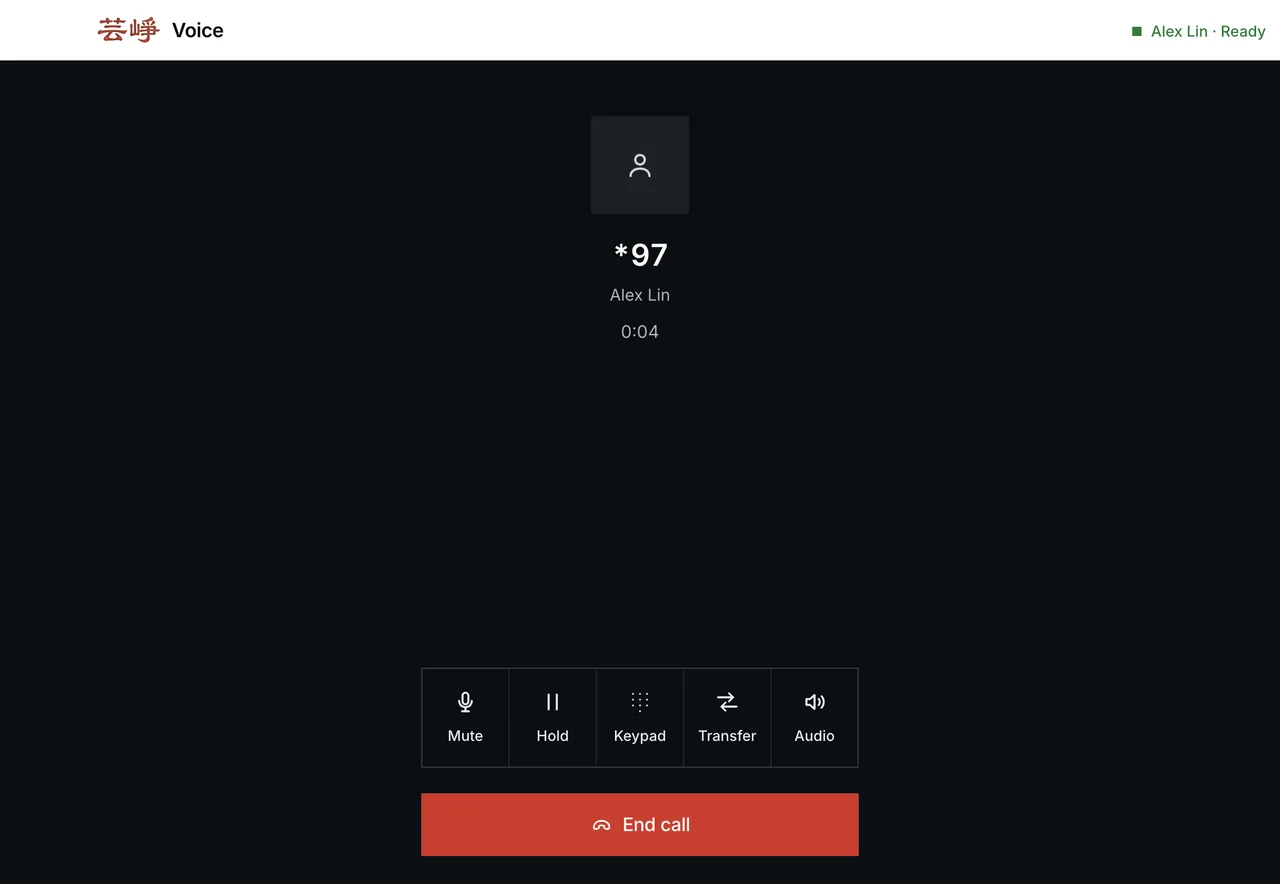
On the Keypad, choose the extension under Calling from, enter a number and press Call. For a first test, dial *97: it opens your own voicemail. You can also dial another extension of your phone system or any YunZheng Voice number.
Step 7: Take a call
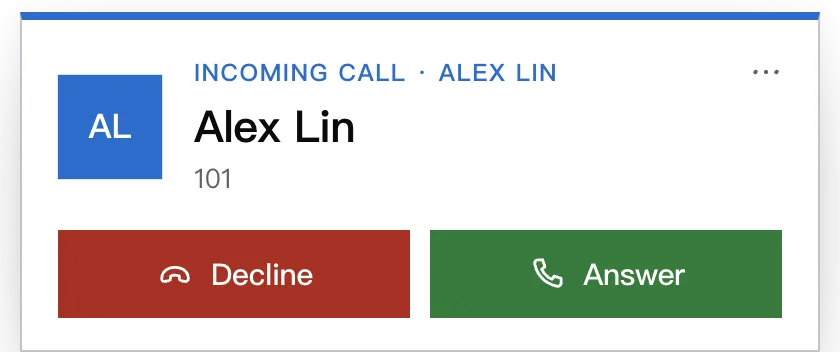
When a call arrives, the desktop app shows a small window with Answer and Decline, also when its main window is hidden. In the browser, the call appears in the tab and as a notification when the tab is in the background.
Step 8: Set up voicemail
On the web, open Settings and find Voicemail: record or upload a greeting, set a PIN for listening from a phone, and choose Email me when a new message arrives.
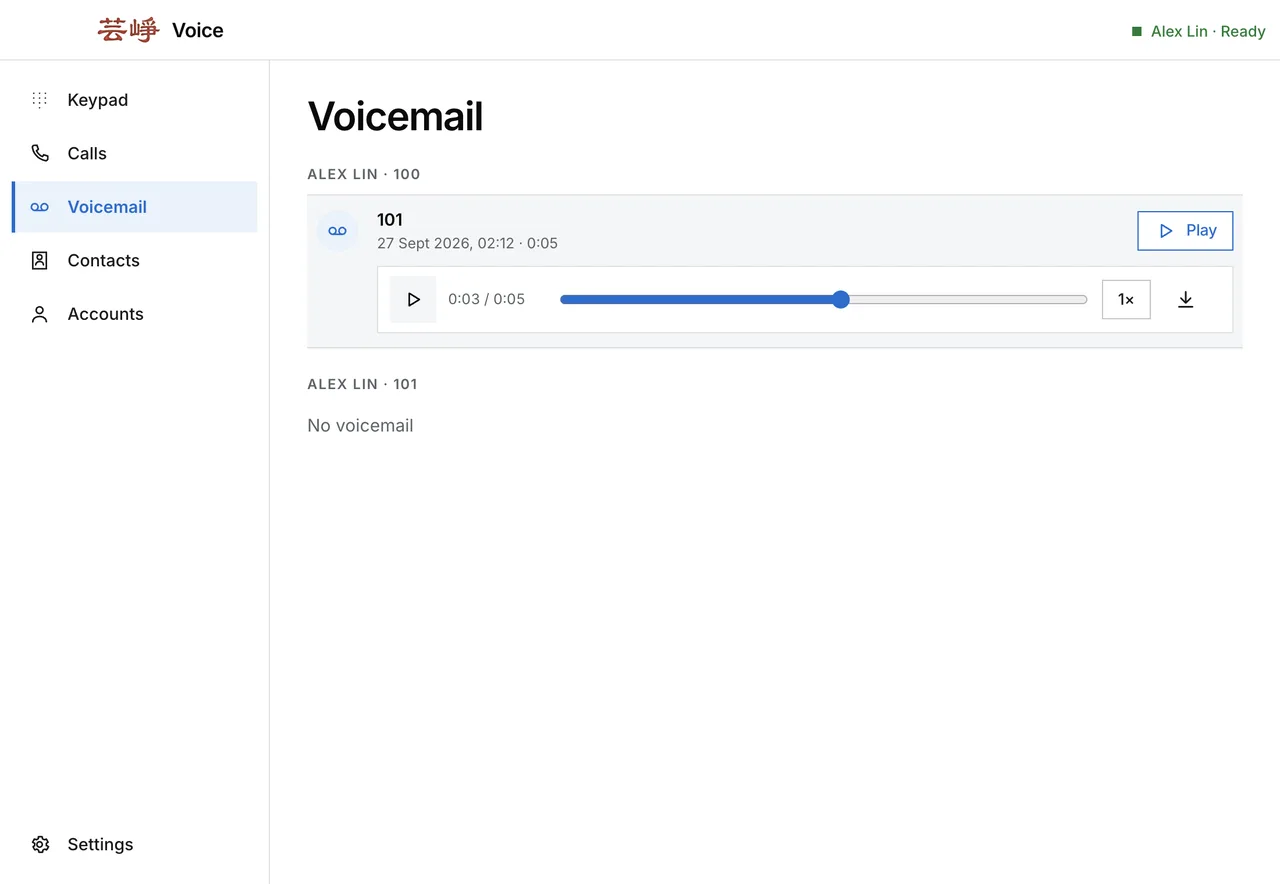
Messages appear under Voicemail in the apps and on the web. Play one to listen: you can pause, move through it, change the speed or save it, and it is marked as heard.
Step 9: Use the same account on several devices
Sign in on as many devices as you like: the browser, the desktop app and your phone. Each of them adds your extensions, all of them ring when a call arrives, and the first to answer takes the call. Signing in on a new device does not sign out the others.
To stop one extension ringing on one device only, turn off Use on this device next to it in Accounts.
Step 10: Add extensions and numbers
In the app, open Accounts, or choose Manage next to Calling from:
- New extension on My phone adds an extension to your phone system
- Add a number gives an extension one of your numbers, or a new one
- Free extensions lists unused extensions on phone systems you manage; choose Claim to use one
- Make default chooses the extension calls go out from
On the web, My numbers has Get a number for a new number and Add an extension to choose what each number rings.
Questions
- How many numbers and extensions are free?
- Individuals and non-profit organisations use YunZheng Voice free of charge. The free allowance includes a personal phone system with 5 extensions and 5 YunZheng Voice numbers.
- What is a +999 number?
- YunZheng Voice numbers start with +999. Any YunZheng Voice user can call them, and with Accept calls from other internet phone services turned on, callers on other internet phone services reach them at the number's address, sip:+999…@voice.yunzheng.space. They are not dialled through the telephone network, so a landline or mobile dialler cannot call them.
- Can I add an account from another SIP provider?
- Yes. In the desktop and phone apps, Accounts has Add SIP account for an account from any SIP service. It works next to your YunZheng extensions, and Calling from chooses which one a call goes out from.
- Does signing in on another device sign me out?
- No. You can stay signed in on every device at once, and all of them ring.
Get started
Make and take calls on your extension from any browser, listen to voicemail, and keep a number of your own that rings every device you choose. Free for personal use.
Open Voice Download YunZheng Voice
More guides: What is a SIP address? · How to set up an IVR phone menu for a small team · How to set up a SIP softphone